On the first day of school, September 9th, 2011 the eigth graders were handed two critical pieces of paper which they were required to sign if they wanted to use the iPads and computers at school, (1) the general Acceptable Use Policy and (2) the iPad acceptable use policy. These were to be signed by the following Thursday (they were going on a trip to Catalina for the first part of the following week). On Friday we handed out iPads to the 47 8th grade students. We reviewed the key components of the Acceptable Use Policy and then began to teach the basics of use. The two goals were to teach how to log into the new Harbor Day School website (where they could get assignments etc.) and next to set up their email accounts. We were able to do this barely in the 50 minutes provided because of various glitches in password changing that was required etc. They went home that weekend and had their iPads in hand.
Then Monday came around and it appeared that some had downloaded apps themselves. Tuesday rolled around and I think that every student had downloaded apps themselves at home and all were playing games and watching movies. This was not the plan and we immediately addressed it by explaining that per the AUP, all students had were to only download apps that had been approved by me and that could only be done at school under teacher supervision. Further all apps not originally included were to be removed by 10:30 Tuesday morning. They did well with this with only 1 student having his iPad confiscated until Friday for having apps remaining on it during a random check.
SO – other lessons learned
Review app purchase rules
-- Initiate random checks
-- Facetime needed to be blocked as many were abusing it
-- Our wireless system showed some weaknesses in certain rooms – oddly the areas that the teachers sit were in “the zone” but the kids in the corners of certain rooms had no reception – we will be upgrading accordingly
-- With all the students downloading and using the website we need to align the teachers methods of posting assignments
-- Folder organization and structure – we will need to address this with the students because even with one weeks assignments things are beginning to get cluttered – by January it could be a mess without some standards
-- The teachers and students are coming in to see me and comment on the apps and the way the students are using them - I NEED to create some kind of debriefing for this so that I can begin to develop best practices
This is just the beginning and we already tested them last year with a smaller sample group. I am sure there is much to come.
James Gapp
Harbor Day School
Wednesday, September 21, 2011

Tuesday, August 23, 2011
Student Roll out – Phase I - unpacking, assembly and naming
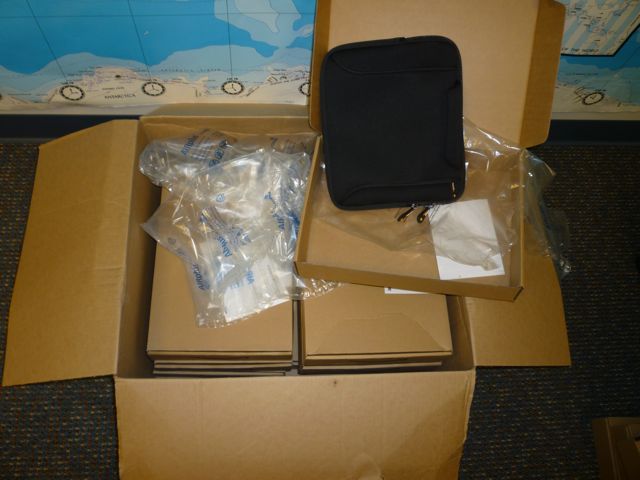
With all the boxes in the room I was ready to begin. I began to take off the first layer of packaging so that I could set up my workstation – I was amazed at the packaging that the Amazon neoprene cases came in – A large box, filled with boxes, each box containing a neoprene case. See below

The first step I took was to try and create a good assembly line for myself. Starting from the left I had the ipads in boxes, the cases, and chargers. On the right I had trash, the famous P-touch label maker and neoprene cases.


The assembly started and I timed it out at 3 minutes per unit. It went quite well and by the end of the day I had completed 50. The next step is to sync them all up.
Thursday, August 18, 2011
Ipad Faculty Roll out Part 1
8-17-11
Lets take a look at the faculty side of the iPad rollout. It is late in the summer and most of the faculty whose students will be using iPads has had an iPad 1 to use since June when summer started. For the past month I have been working to decide
1. Naming the various logins for the iPad deployment computer and setting up the iTunes accounts for each
2. What apps their new iPad 2’s will have on them
3. How to best get those apps onto the iPads
4. How to pay for the apps
5. The cases that they will use to hold the iPads AND chargers
6. The stylus to be used
7. Labeling conventions, restrictions on the iPads
8. Philosophical issues
a. When do we start training the teachers and what exactly will the training be?
b. How does each download new apps
c. Can he/she sync with their computer?
d. Sharing the classroom use of the iPad
e. Sharing the apps that each teacher finds


Lets take a look at the faculty side of the iPad rollout. It is late in the summer and most of the faculty whose students will be using iPads has had an iPad 1 to use since June when summer started. For the past month I have been working to decide
1. Naming the various logins for the iPad deployment computer and setting up the iTunes accounts for each
2. What apps their new iPad 2’s will have on them
3. How to best get those apps onto the iPads
4. How to pay for the apps
5. The cases that they will use to hold the iPads AND chargers
6. The stylus to be used
7. Labeling conventions, restrictions on the iPads
8. Philosophical issues
a. When do we start training the teachers and what exactly will the training be?
b. How does each download new apps
c. Can he/she sync with their computer?
d. Sharing the classroom use of the iPad
e. Sharing the apps that each teacher finds
We have tackled all of these and have now completed 1-6 and some of item 7. I created a spreadsheet to list and track the following
IPad deployment computer Logins
Login, Password, Comments
NEW IPADS - SUMMER 2011
Faculty name, IPad Name, Serial Number, Identifier , Wi-Fi MAC Address, ITunes Account, Password, Case - tight , Carry case, Synced with, Backup file password
DEPLOYMENT GUIDE - another spreadsheet to track the deployment

SYNCING
Having just completed the syncing portion I followed the order below – see also the CLICK HERE FOR YOUTUBE VIDEO of the list below – not very exciting but it is an example of what I did to each.
1. Label the iPad, place in case with charger and stylus
2. Log into appropriate Mac account on the iPad deployment computer
3. Plug in iPad
4. Name iPad and deselect checkboxes to NOT sync all apps etc
5. Update IOS if needed
6. Check iTunes account currently logged into (this is somewhat important because it becomes the default account when someone makes their first purchase on the iPad)
7. Go to the apps heading and select apps you would like to sync
8. Click sync
9. Go to the iPhone config utility and install on the iPad
10. Copy all relevant information onto the tracking spreadsheet
11. Unplug and test to see that there is wi-fi connectivity
Picture below of final case and iPad put together

DETAILS OF THE CASES AND STYLUS
Item | detail | Link | Comments |
Outer carry case | Amazon Basics | http://www.amazon.com/AmazonBasics-Netbook-Handle-10-Inch-Netbooks/dp/B002VPE1Q6/ref=sr_1_2?ie=UTF8&qid=1313531682&sr=8-2 | Amazon's neoprene - 11.29 |
Small case | Case Crown $25.21 | http://www.amazon.com/gp/product/B004R7A9NU | Leather style case |
Stylus | Roo Case | http://www.amazon.com/gp/product/B004GYVPGE | $8.98 per stylus - rubber 1/2 sphere tip |
Tuesday, August 16, 2011
App comment
8-16-11
After several iTunes and iPad OS updates I had to go back and correct the comments about the syncing and erasing of apps. I think that it can be best summed up by the following
1. Each app carries the iTunes account that it was downloaded with.
2. That iTunes account must be authorized on the computer that you are trying to sync with.
There are a few scenarios that can make use of the above but it sets us up to have one computer syncing all iPads but we will have different itunes accounts under different logins for each grade and a separate iTunes account for faculty.
After several iTunes and iPad OS updates I had to go back and correct the comments about the syncing and erasing of apps. I think that it can be best summed up by the following
1. Each app carries the iTunes account that it was downloaded with.
2. That iTunes account must be authorized on the computer that you are trying to sync with.
There are a few scenarios that can make use of the above but it sets us up to have one computer syncing all iPads but we will have different itunes accounts under different logins for each grade and a separate iTunes account for faculty.
Friday, June 24, 2011
Friday 6-24-11
IPads – restoring syncing etc. – this is what we are doing and of course not necessarily the best but we will learn.
SEE UPDATE IN RED BELOW and next Blog
GOAL:
When the students turned in their iPads I had to quickly get them prepared for the teachers to check them out for summer. I chose to restore them – but I restored them to the student’s original condition – I could have restored the faculty version but there were too many random apps associated with those iPads.
Notes - We have a single laptop that is dedicated to syncing and maintaining notes on the iPads. We also have 2 different log ins, one for students and one for teachers. I was using the student login and therefore the iTunes account etc would restore to the student iPad unit.
SUMMARY - <<<<UPADATE NOTE 7-30-11>>> As of the last IOS and itunes update much has changed - if you try to sync on a computer that is not "authorized" on the itunes account that you are using on the ipad then the apps WILL BE ERASED!
Before we go into the various details the summary is as follows…
When you plug in your iPad to the computer it was originally synced with, logged in as originally logged in (in case you set up diff logins for teacher, student, admin etc), the iPad will be backed up. This will upload any apps that it has on it that were downloaded while away from the computer and backup the files on the iPad. At this point, choosing to restore the iPad will either erase all files and reset all the apps that you had OR you can restore the iPad with all the old files and apps that you had.
Question – is it the iTunes account that iTunes is logged into when the syncing occurs or is it the user(login) that the iTunes account is hosted on that determines the sync? By login I mean that we have 1 computer set up for different users to log in – that separates the iTunes account/music/etc and keeps them independent.
Answer – I am fairly certain that it is the user(login) computer that the iTunes software is hosted on that determines the sync.
DETAILS
Here is what I did
1. Logged into the iPad laptop under the “student” login
2. Received the iPads and plugged first one into the iPad laptop
3. Once plugged in, iTunes recognizes the iPad as being synced with this computer and backs up the iPad
4. Click “restore” – this causes a warning that all data will be erased etc. – we find out later that this is not necessarily true – we click OK to this
5. The restoration process begins and at some point another screen pops up saying something – then the following comes up on the screen

The pull down menu has a list of all the iPads that have been synced. The default selection is the one that was just plugged in. Here is what happens depending on the selection – I SELECTED (a.) below
a. Set up as new iPad – this erases all data and files that might have been on the iPad, installs all the apps that iTunes has on this computer has and restarts. Note that during the earlier backup process the apps would have been synced
b. Restore from the backup of <pull down menu> -- this restores to the most recently backup up state that the selected iPad was in. This is good to transfer between iPads or if you get the iPad 2 and want to transfer all your files etc – It brings over everything – home screens, email name and accounts, etc.
6. So, given that I selected a, it takes a couple of minutes but then you have a fresh iPad with all the apps from the student login that you set up.
CONCLUSION –
So far I think that what we will do to is to set up a different login for the 8th grade. Then we will
1. Decide on which apps the eighth grade will start with
2. Load those apps onto the computer
3. Chose to “restore” all the new iPads to sync with this master
As a final note I tried several different methods of transferring and syncing between accounts/logins etc but it seems that this is the best so far – I am sure that new discoveries will be made later.
SEE UPDATE IN RED BELOW and next Blog
GOAL:
When the students turned in their iPads I had to quickly get them prepared for the teachers to check them out for summer. I chose to restore them – but I restored them to the student’s original condition – I could have restored the faculty version but there were too many random apps associated with those iPads.
Notes - We have a single laptop that is dedicated to syncing and maintaining notes on the iPads. We also have 2 different log ins, one for students and one for teachers. I was using the student login and therefore the iTunes account etc would restore to the student iPad unit.
SUMMARY - <<<<UPADATE NOTE 7-30-11>>> As of the last IOS and itunes update much has changed - if you try to sync on a computer that is not "authorized" on the itunes account that you are using on the ipad then the apps WILL BE ERASED!
Before we go into the various details the summary is as follows…
When you plug in your iPad to the computer it was originally synced with, logged in as originally logged in (in case you set up diff logins for teacher, student, admin etc), the iPad will be backed up. This will upload any apps that it has on it that were downloaded while away from the computer and backup the files on the iPad. At this point, choosing to restore the iPad will either erase all files and reset all the apps that you had OR you can restore the iPad with all the old files and apps that you had.
Question – is it the iTunes account that iTunes is logged into when the syncing occurs or is it the user(login) that the iTunes account is hosted on that determines the sync? By login I mean that we have 1 computer set up for different users to log in – that separates the iTunes account/music/etc and keeps them independent.
Answer – I am fairly certain that it is the user(login) computer that the iTunes software is hosted on that determines the sync.
DETAILS
Here is what I did
1. Logged into the iPad laptop under the “student” login
2. Received the iPads and plugged first one into the iPad laptop
3. Once plugged in, iTunes recognizes the iPad as being synced with this computer and backs up the iPad
4. Click “restore” – this causes a warning that all data will be erased etc. – we find out later that this is not necessarily true – we click OK to this
5. The restoration process begins and at some point another screen pops up saying something – then the following comes up on the screen

The pull down menu has a list of all the iPads that have been synced. The default selection is the one that was just plugged in. Here is what happens depending on the selection – I SELECTED (a.) below
a. Set up as new iPad – this erases all data and files that might have been on the iPad, installs all the apps that iTunes has on this computer has and restarts. Note that during the earlier backup process the apps would have been synced
b. Restore from the backup of <pull down menu> -- this restores to the most recently backup up state that the selected iPad was in. This is good to transfer between iPads or if you get the iPad 2 and want to transfer all your files etc – It brings over everything – home screens, email name and accounts, etc.
6. So, given that I selected a, it takes a couple of minutes but then you have a fresh iPad with all the apps from the student login that you set up.
CONCLUSION –
So far I think that what we will do to is to set up a different login for the 8th grade. Then we will
1. Decide on which apps the eighth grade will start with
2. Load those apps onto the computer
3. Chose to “restore” all the new iPads to sync with this master
As a final note I tried several different methods of transferring and syncing between accounts/logins etc but it seems that this is the best so far – I am sure that new discoveries will be made later.
Tuesday, June 21, 2011
Tue 6-21-11
Last week the students returned their iPads. A few comments – see pictures @ end for details of below
1. Of the roughly 20 iPads on campus – one student iPad’s home button stopped working – we had an extra iPad for her to use but it made us realize that we would need backup devices for next years roll out. We have not taken the iPad in yet so we will see about time and cost to repair.
2. The screen covers – these are rather difficult to apply but 2 of the iPads had visible scratches on the screen cover – the screen would have certainly been scratched
3. The double case idea works well – we have the iPad case by Apple (will need to re-think this for the iPad 2) and another case by Amazon that serves as a small briefcase (almost man-purse – Seinfeld). This case is neoprene, has one pocket for the iPad and another for accessories. The accessories thus far have simply been the charger and stylus
4. The students tested 2 different stylus and although the second style was more liked it broke more easily. This is going to be a big thing to define because they are not cheap. I will be looking at a few styles this summer. The styles we used are shown in the picture below (NOTE that they are both lost rather easily and out of 7 students, 3 lost them)
5. iPad chargers – no students lost them and 2 teachers lost them – the teachers checked out iPads for 2 months at a time in order to become familiar with them.
6. We might need to label the chargers in the even that someone looses his/hers
7. Charging iPads for class – the battery life of the IPads is so good that some could go for a full week without charging. This negative to this is that they forget to charge them – so yet another reminder/rule to discuss charging. Rules, while good, are less effective than teacher reminders.
8. AUP – In addition to the regular AUP items we will need to look at the items listed above and form rules/guidelines for them.
9. Once returned we needed to restore the iPads so that the teachers could check them out for the summer. More on that later.

1. Of the roughly 20 iPads on campus – one student iPad’s home button stopped working – we had an extra iPad for her to use but it made us realize that we would need backup devices for next years roll out. We have not taken the iPad in yet so we will see about time and cost to repair.
2. The screen covers – these are rather difficult to apply but 2 of the iPads had visible scratches on the screen cover – the screen would have certainly been scratched
3. The double case idea works well – we have the iPad case by Apple (will need to re-think this for the iPad 2) and another case by Amazon that serves as a small briefcase (almost man-purse – Seinfeld). This case is neoprene, has one pocket for the iPad and another for accessories. The accessories thus far have simply been the charger and stylus
4. The students tested 2 different stylus and although the second style was more liked it broke more easily. This is going to be a big thing to define because they are not cheap. I will be looking at a few styles this summer. The styles we used are shown in the picture below (NOTE that they are both lost rather easily and out of 7 students, 3 lost them)
5. iPad chargers – no students lost them and 2 teachers lost them – the teachers checked out iPads for 2 months at a time in order to become familiar with them.
6. We might need to label the chargers in the even that someone looses his/hers
7. Charging iPads for class – the battery life of the IPads is so good that some could go for a full week without charging. This negative to this is that they forget to charge them – so yet another reminder/rule to discuss charging. Rules, while good, are less effective than teacher reminders.
8. AUP – In addition to the regular AUP items we will need to look at the items listed above and form rules/guidelines for them.
9. Once returned we needed to restore the iPads so that the teachers could check them out for the summer. More on that later.
Subscribe to:
Posts (Atom)